

During the campaign period, users can access JustLend DAO via Binance Wallet, subscribe to eligible TRON ecosystem assets, and participate in TRON DeFi Summer to share $4.5M worth of TRX & USDD rewards. This guide uses TRX subscription as an example. If users select USDD, JST, SUN, or another asset, they should follow the instructions shown on the corresponding asset page.
1. Prepare Assets
Open the Binance Wallet homepage and tap [Receive].
Select [Transfer from Binance Exchange], choose the asset you want to transfer, such as TRX, and confirm the network is [Tron (TRC20)].
Enter the transfer amount, tap [Transfer], then check the order details again and tap [Confirm].
Once the page shows [Withdrawal Processing], wait for the transfer to complete. After the assets arrive, you can proceed to the next step.
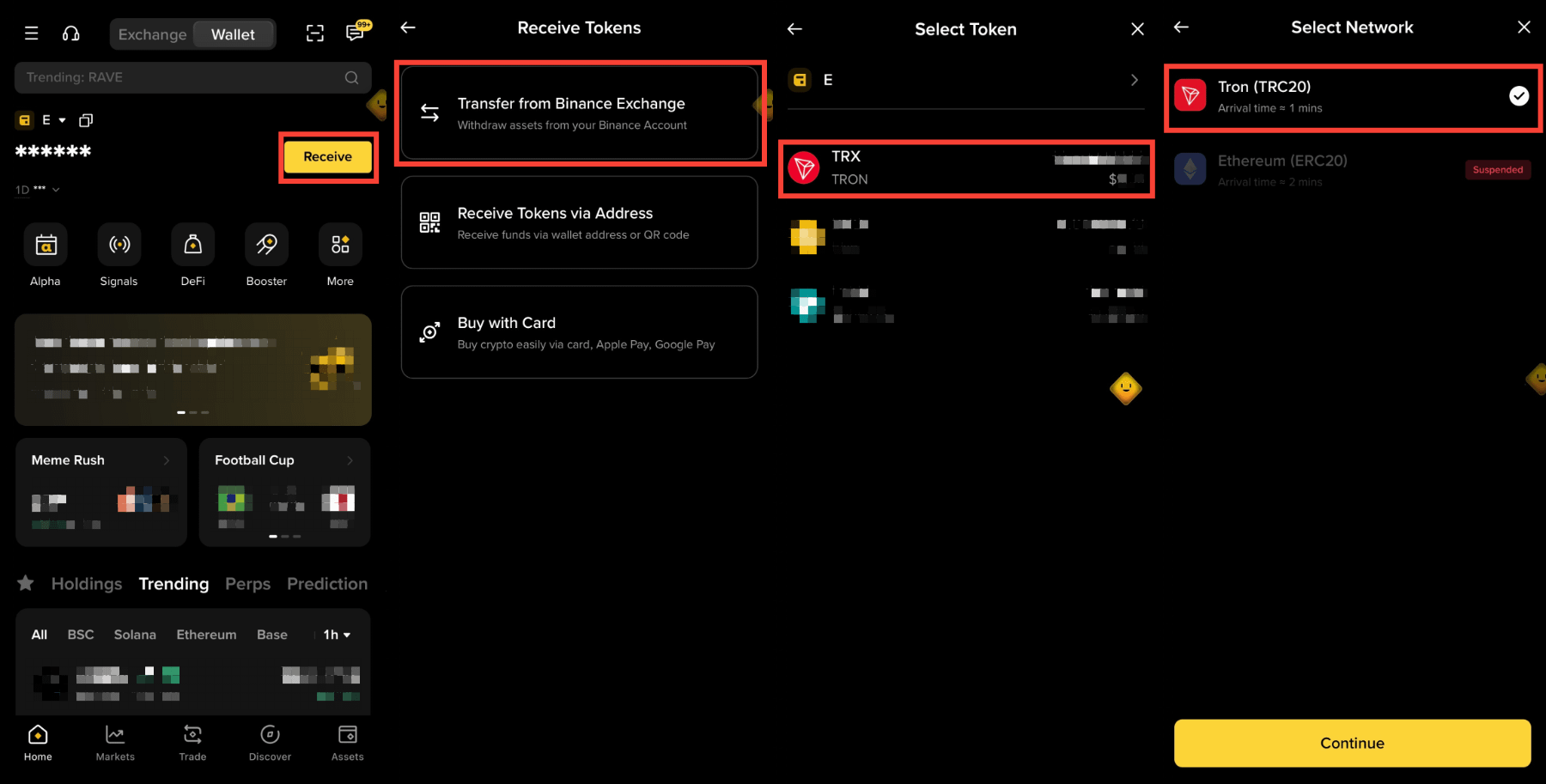
Receive assets -> Transfer from Binance Exchange -> Select asset and TRON network
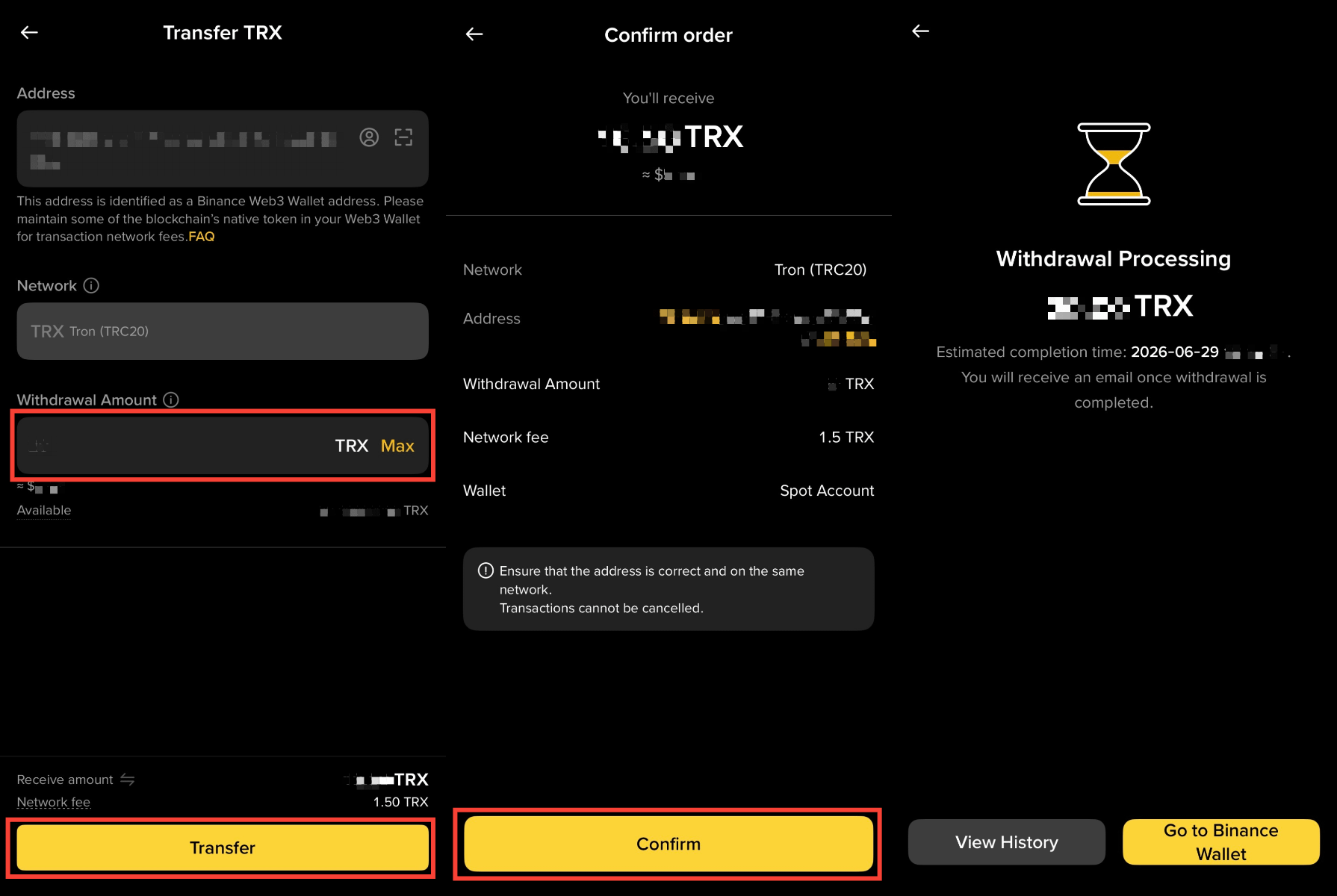
Enter transfer amount -> Confirm order -> Wait for withdrawal processing
2. Enter JustLend DAO and Select an Asset
Return to the Binance Wallet homepage and tap [DeFi].
Go to [Protocols], find and tap [JustLend DAO].
On the JustLend DAO page, review information such as TVL, APY, and the asset list.
Select an eligible asset to enter its detail page. This guide uses TRX as the example.
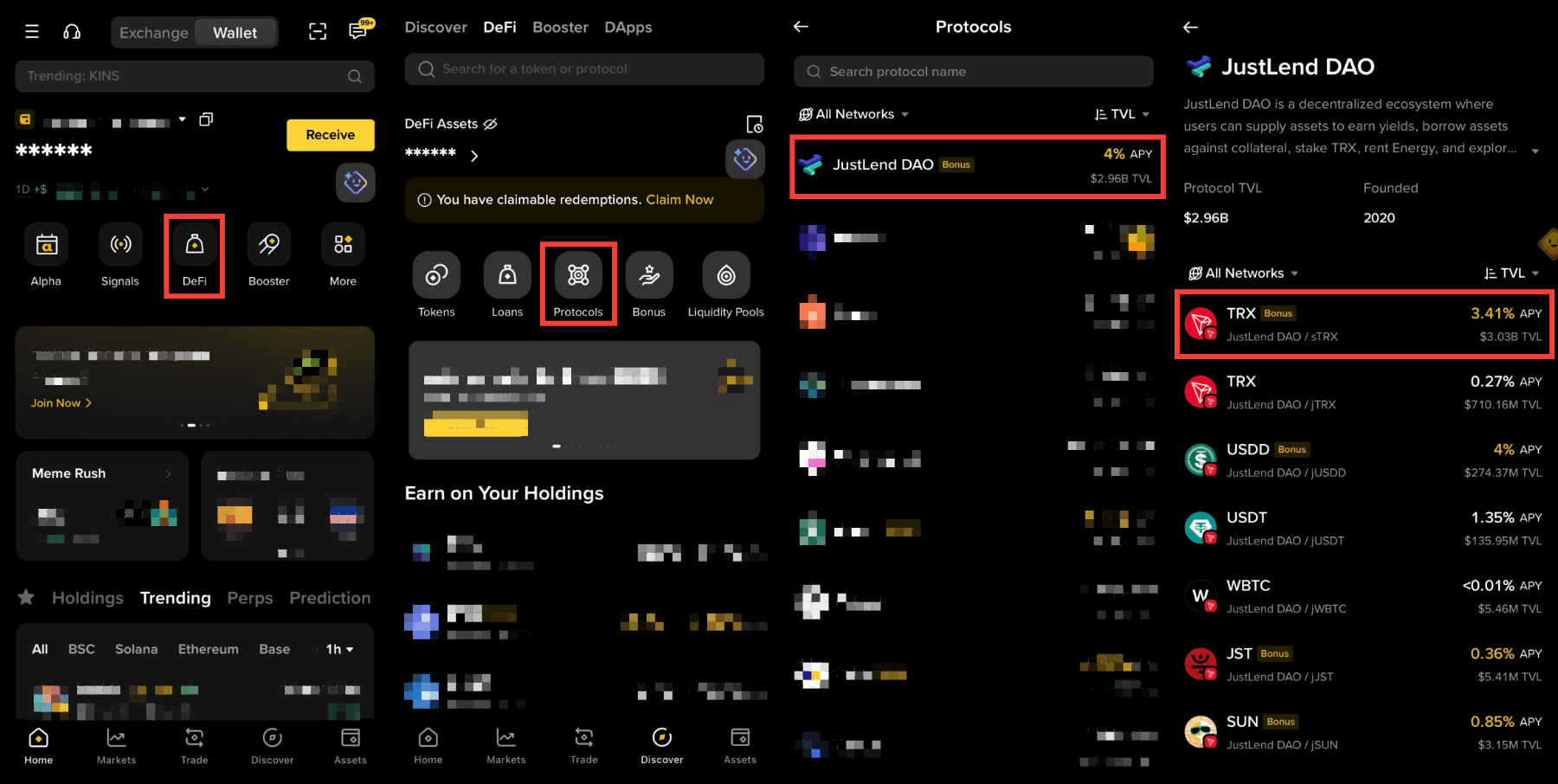
Binance Wallet DeFi entry -> Protocols -> JustLend DAO -> Select asset
3. Subscribe to a JustLend DAO Asset and Confirm Fee Coverage
On the asset detail page, tap [Subscribe]. If you are a new user, complete the Binance Wallet DeFi quiz and risk confirmation first.
Enter the subscription amount and review the estimated daily yield.
Continue to the transaction confirmation page and check the asset, network, and fee details.
Tap [Confirm]. Once the subscription is completed, the page will show [Stake Successful], and the corresponding receipt token will appear in the wallet.
Receipt Token Reminder: Using the TRX pool as an example, users usually receive sTRX after subscribing.
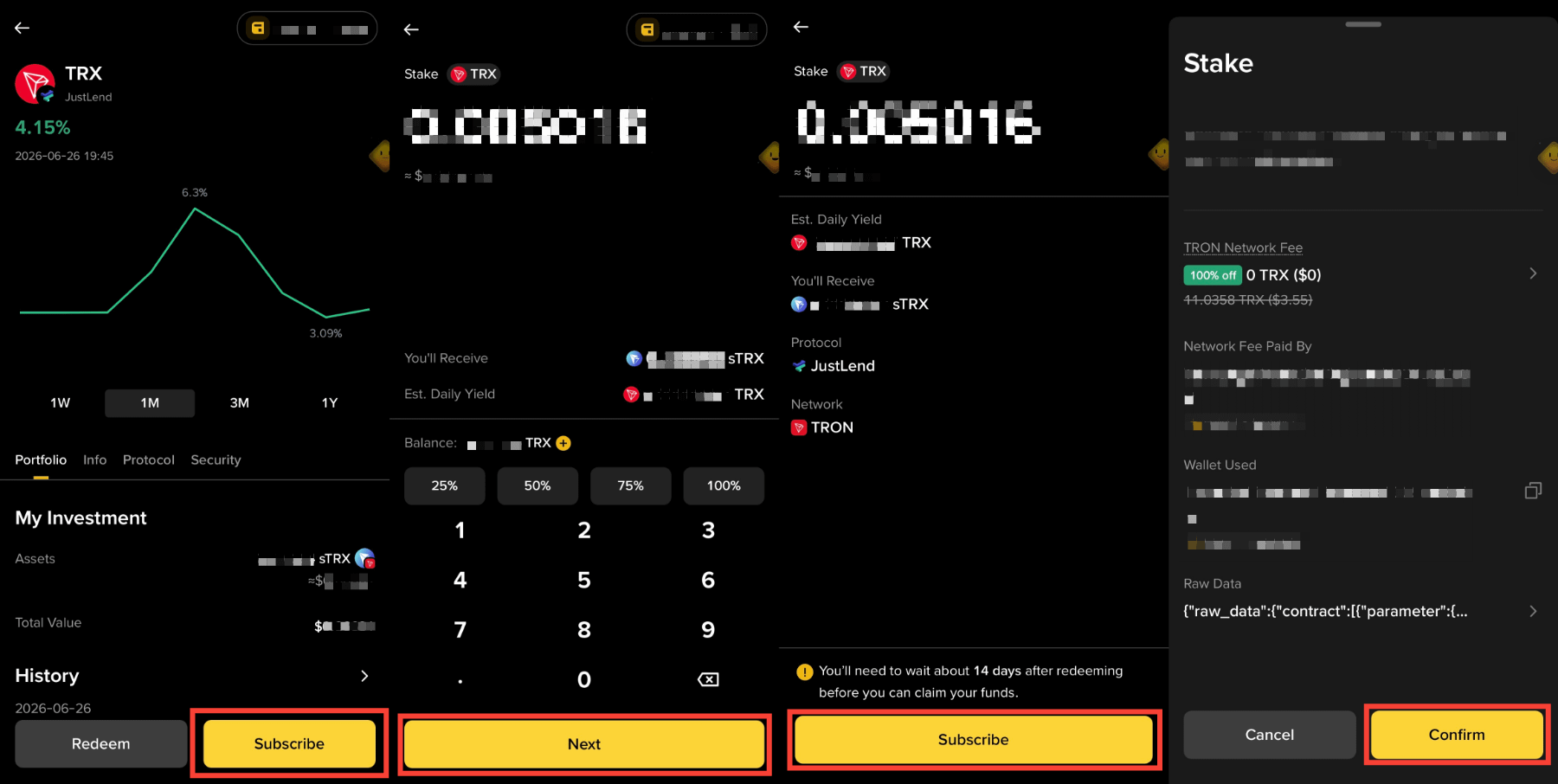
Asset detail page -> Subscribe -> Enter amount -> Review estimated yield and fee confirmation
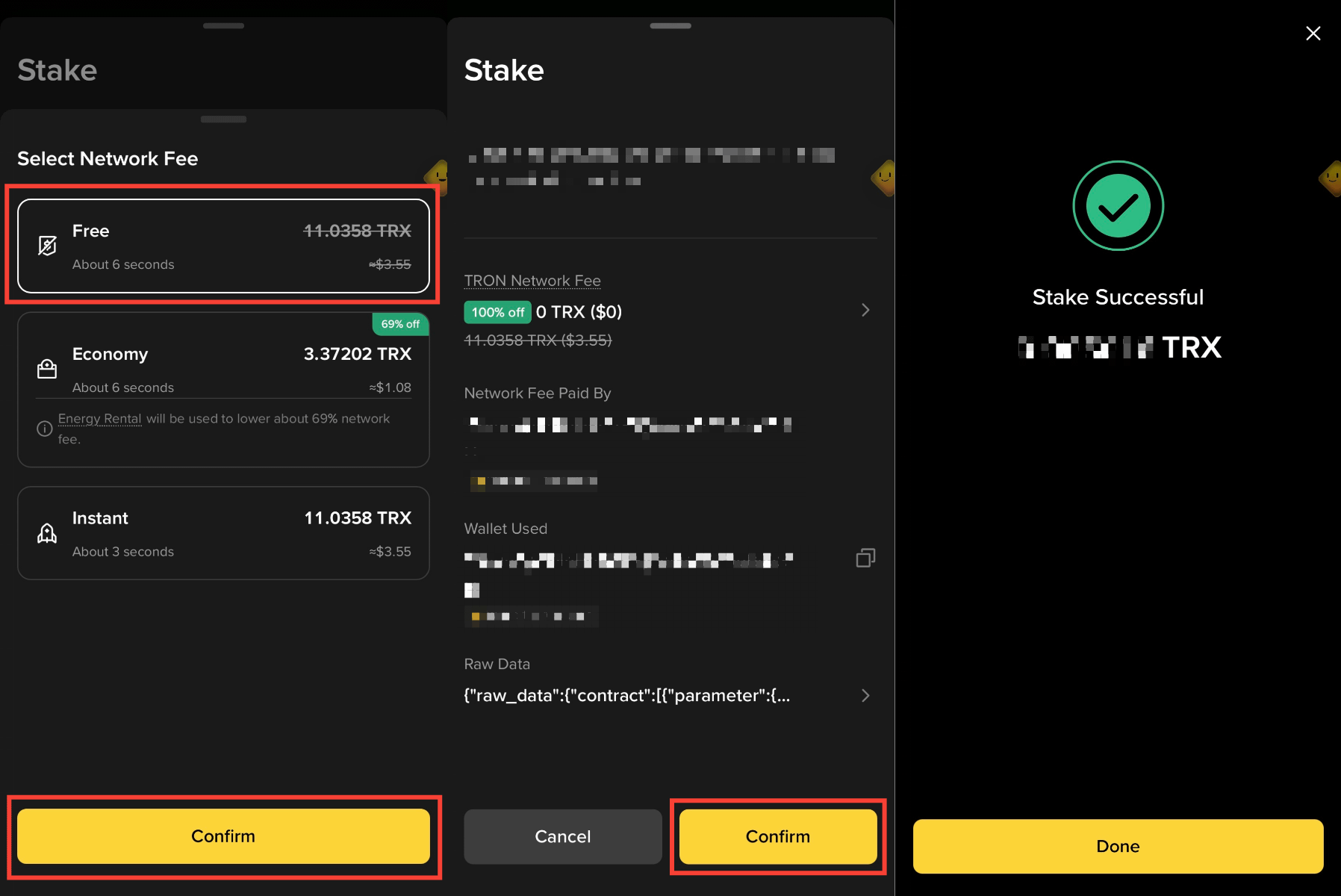
Confirm transaction -> Stake successful and receive receipt token
4. Check Subscribed Assets
Users can view their subscribed assets and corresponding receipt tokens on the Binance Wallet asset page or My Portfolio page.
5. Redeem Assets from JustLend DAO
Open Binance Wallet, tap [DeFi] -> [My Portfolio], and select the asset you previously subscribed to.
Tap [Redeem], enter the redemption amount, review the redemption amount, network fee, and page prompts, then tap [Next] -> [Redeem] -> [Confirm].
After submission, check the page status. The arrival or claim period may vary by asset pool, so please follow the page prompts.